Cisco

Switch

Configuring Etherchannels (Link Aggregation) on Cisco switches

The etherchannel (also called port channel sometimes) technology allows to combine several physical switch ports (from 2 to 8 total) into one logical port. This technology is often used to increase reliability of a connection between two devices. Traffic uses all active ports and, in case one physical port fails, this will have no effect on the overall availability of the connection. Naturally, the connection bandwidth is increased, as well.

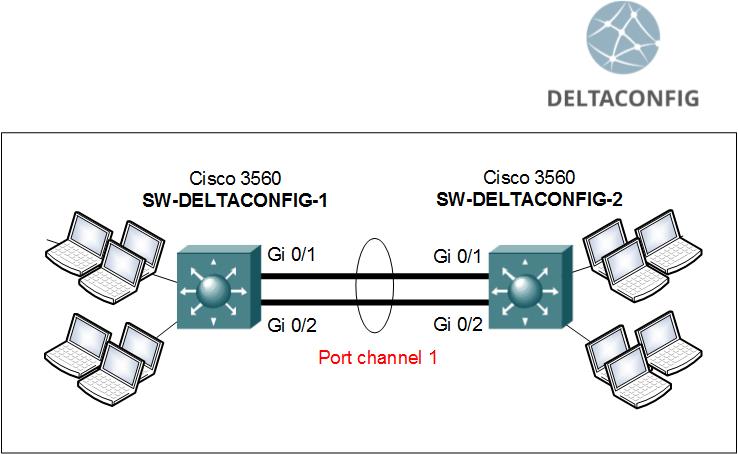
For this example, we will look at configuring two Cisco switches. Let it be Cisco Catalyst 3560, although the technology and command syntax are universal and practically identical for all models.

On the first switch, SW-DELTACONFIG-1, we need to create a logical interface port-channel with a unique sequence number (for example, 1)

Read more →
Routers

Routes and Routing Explained

How to add a route

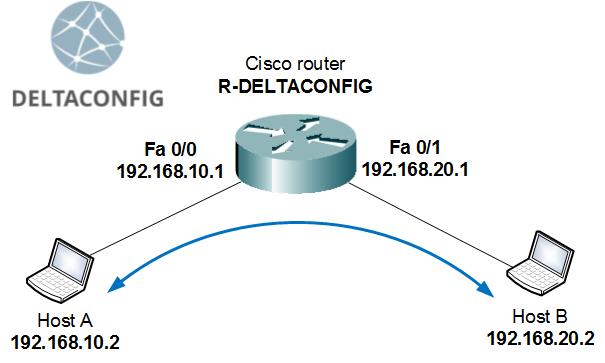
By default, any router or firewall is aware only of those networks and subnets that are directly connected to it. This applies likewise to Cisco equipment and any other vendors. If a device has 2 interfaces with IP addresses from different networks assigned, it is capable of forwarding packets between two connected hosts, routing the traffic. That is, of course, if the hosts have that device configured as their default gateway.

The above example is oversimplified and is almost never used in real life. Let's consider a more complex and realistic scenario: we have two locations in a company, with each office having its own LAN that is connected to a router. Between the two offices there is some kind of a point-to-point link.
In this case, by default, each router will only be aware of its LAN and of the link between the offices, but will not know where to forward the packets destined for the other office's LAN. If you issue a ping command, each router will be able to access the outside IP address of the other router, but will not be able to reach any address inside the remote LAN.

Read more →
Tips and Tricks

Cisco configuration modes

User mode >

As soon as you gain access to the device terminal, you enter user mode, which is indicated by a > prompt.

Privileges are barely enough to view the OS version and the device serial number (command sh ver).

Privileged mode #

For advanced configuration, you have to switch to a priviliged mode. Execute enable and type the password for this mode, if needed. On success, the prompt will change to #.

Here, you can execute commands to view current configuration (sh run) or poll device interfaces (sh ip inter brief for network switches and routers or sh inter ip brief for Cisco ASA).

Read more →
Routers

Cisco router access lists

In this article we're going to examine how to create and use access lists based on the scenario of connecting a small office network to the Internet with the help of a Cisco 881 router. The command syntax and configuration steps are going to be the same for routers of other models and series (1841, 2800, 3825, etc.), as well as for Layer 3 switches (3500, 4800, etc. series). The differences might come up in the interface configuration for each model.

For our sample network, we have:

several workstations and servers inside the office's Local Area Network Cisco 881 router switch (used only to connect the LAN hosts, has no other configuration)

Our task: limit the traffic that passes through the router

Read more →
Switch

Configuring Cisco 3560 switch

Let's consider a scenario in which there are two several departments of the same company that have to be connected using logically separate networks (VLANs) and need to communicate with each other, while being connected on a single Layer 3 switch Cisco 3560.
The task is to organize the following subnets (VLANs):

Step 0. Clear previous configuration

(This step should be performed only on new or test equipment, since it completely removes all existing configuration)
After you take your new switch out of the box, connect to it with a console cable and clear the factory configuration by entering the privileged mode and using the "write erase" command (you can learn more about Cisco IOS configuration modes in this article)

After this your switch will reboot, taking about three minutes to do so, and display a request for basic configuration wizard afterwards. You should decline:

Step 1. Hostname

Let's call our switch SWR-DELTACONFIG-1 (SWR is an abbreviation from SWitch Router). To do this, enter the configuration mode (conf t) and type the following commands:

Read more →
Routers

Site to Site VPN between Cisco Routers

One of the most common tasks dealing with Cisco 881 and other routers is building a site to site VPN tunnel between different geographic locations. Today we will look at an example setting up a VPN tunnel between a main office and a remote branch office.

At our disposal, we have:

Cisco 2800 router in the main office (R-MAIN)
Main office user LAN 192.168.10.0 /24
External static IP address 1.1.1.2 /30
ISP gateway 1.1.1.1 /30

Cisco 881 router in the branch office (R-BRANCH)
Branch office user LAN 192.168.20.0 /24
External static IP address 2.2.2.2 /30
ISP gateway 2.2.2.1 /30

Read more →
Routers

Configuring InterVLAN Routing on Cisco Routers (Router on a stick)

A host or workstation from one Vlan can communicate with hosts located in other VLANs using a Cisco router that would handle the Layer 3 routing between the different  VLANs. The Cisco router has to be connected to the switch through a Trunk port. Each packet of traffic is marked with the VLAN number (called Vlan ID) when it is sent over a trunk port. This allows the participating devices to handle the packets correctly.
The trunk interface on the router is divided into subinterfaces with the matching IP addresses for each VLAN subnet.
Here we have an example of a configured trunk port on Cisco 2811 router that is connected to a Layer 2 switch. Note that the configuration commans will be the same for all Cisco routers like Cisco ASR1000, ISR 4000 or any other.

Video version of this article

Enter the configuration mode:

Read more →
Cisco ASA

Cisco ASA recovery using ROMMON mode

Sadly enough, sometimes network equipment goes out of order. This, of course, happens when you're least expecting it. In most cases that I've come across throughout my work, this is what happens: Cisco ASA is unexpectedly powered down or reloaded (due to planned or unplanned power outage, thunderstorm or work with electric equipment), and after reload, the interfaces, VPN tunnels and other services don't come back up. We're not going to examine the situation in which the device cannot turn on entirely and all the LED indicators are dead - in that case, a replacement for the device is the only viable option. Let's focus on the situation when the Cisco ASA device is still operable, but does not perform a full load - i.e. the Cisco IOS operating system image can't load properly. In this case, there is still a chance to reanimate the device, at least until you get a new one for replacement.

The first thing we need to do is connect to the firewall through a console cable. If the firewall does not respond to any commands and produces no output on the console screen, then you've reached the worst-case scenario - you can thank the device for its long and fruitful service and put it on a shelf. However, if you are seeing some activity on the console screen, it's not that bad and you can try to understand what's going on. The firewall may have entered into the special ROMMON mode (under normal circumstances, this mode is activated by pressing the ESC key during boot-up) or is in a cyclic reload that happens as it tries to load the operating system image.

The special ROMMON mode looks something like this:
Use ? for help.
ROMMON #0>

Once you're in this mode, you should try to force the device to start by entering the system command "boot":
ROMMON #0> boot
Read more →
Cisco ASA

Configuring VPN on Cisco ASA

This material follows up on the topic covered in the Configuring VPN between two Cisco routers, but is being dedicated an entirely separate article, since it deals explicitly with configuring Cisco ASA devices.

The task will again consist of connecting a main and a branch office through VPN, but this time the main office works on a Cisco ASA 5510 firewall instead of a Cisco 2800 router.

At our disposal we have:
Cisco ASA 5510 firewall in the main office

Router Cisco 881 at the branch office

Read more →
Switch

How to find a host by it’s MAC address on Cisco switch

In everyday work, it's often necessary to determine the switch and port a user or device is connected to. To do it, you don't have to look for it visually. All you need is to know its MAC address.
The point is that each switch stores information about all MAC addresses that showed at least any network activity in the last few minutes. Your task is to use this information wisely.
So, let's say you need to find the switch port a user John is connected to. It's known that the IP address of his computer is 192.168.10.100

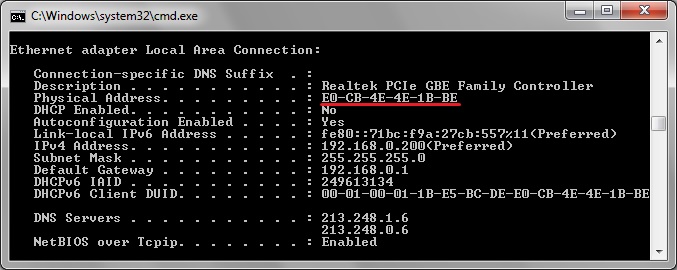
There are two possible ways of how you can determine the MAC address:

Or

Read more →