Cisco ASA

Cisco ASA

Cisco ASA port forwarding explained

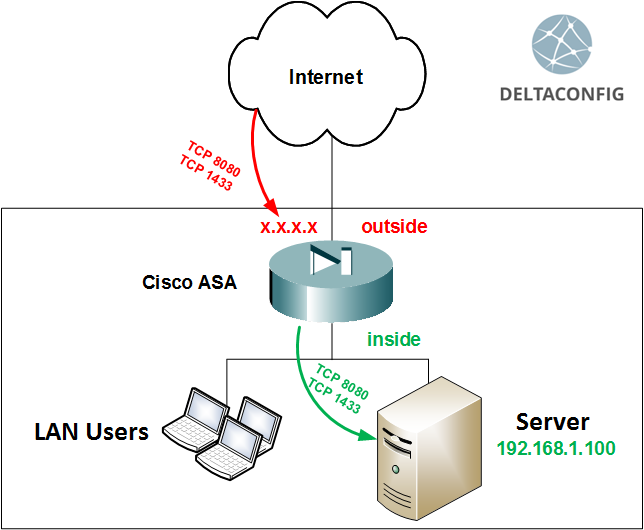
One of the most frequent issues connected with the Cisco ASA configuration is the so-called "port forwarding". In other words, the NAT configuration that allows users from the Internet to enter the internal company servers.

Basic NAT settings for the users' access and internal resources on the Internet are described in the article "Basic configuration of Cisco ASA", and the principle of using the NAT technology for one or another case - in "Using NAT on Cisco router". While this article, in particular, covers the configuration for the publication of the internal resources on the Internet.

For successful implementation, there are two steps required:

Read more →
Cisco ASA

Failover on Cisco ASA

Before getting into the configuration details of Cisco ASA backup scheme (called failover), I would like to point out a few rules regarding the technology itself:

There are exceptions to these rules, but I am deliberately not mentioning them in this article, so that the possible problems with the configuration can be brought to a minimum.

When configuring failover, the order in which you enter the configuration commands, as well as the order in which you connect two Cisco ASA devices together, is more important than the configuration itself.

Read more →
Cisco ASA

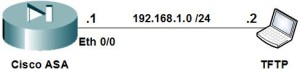
Cisco ASA recovery using ROMMON mode

Sadly enough, sometimes network equipment goes out of order. This, of course, happens when you're least expecting it. In most cases that I've come across throughout my work, this is what happens: Cisco ASA is unexpectedly powered down or reloaded (due to planned or unplanned power outage, thunderstorm or work with electric equipment), and after reload, the interfaces, VPN tunnels and other services don't come back up. We're not going to examine the situation in which the device cannot turn on entirely and all the LED indicators are dead - in that case, a replacement for the device is the only viable option. Let's focus on the situation when the Cisco ASA device is still operable, but does not perform a full load - i.e. the Cisco IOS operating system image can't load properly. In this case, there is still a chance to reanimate the device, at least until you get a new one for replacement.

The first thing we need to do is connect to the firewall through a console cable. If the firewall does not respond to any commands and produces no output on the console screen, then you've reached the worst-case scenario - you can thank the device for its long and fruitful service and put it on a shelf. However, if you are seeing some activity on the console screen, it's not that bad and you can try to understand what's going on. The firewall may have entered into the special ROMMON mode (under normal circumstances, this mode is activated by pressing the ESC key during boot-up) or is in a cyclic reload that happens as it tries to load the operating system image.

The special ROMMON mode looks something like this:
Use ? for help.
ROMMON #0>

Once you're in this mode, you should try to force the device to start by entering the system command "boot":
ROMMON #0> boot
Read more →
Cisco ASA

Configuring VPN on Cisco ASA

This material follows up on the topic covered in the Configuring VPN between two Cisco routers, but is being dedicated an entirely separate article, since it deals explicitly with configuring Cisco ASA devices.

The task will again consist of connecting a main and a branch office through VPN, but this time the main office works on a Cisco ASA 5510 firewall instead of a Cisco 2800 router.

At our disposal we have:
Cisco ASA 5510 firewall in the main office

Router Cisco 881 at the branch office

Read more →
Cisco ASA

Basic configuration of Cisco ASA

Let's look over an example of how to connect an office LAN to the Internet with using a Cisco ASA firewall. For this example, we will use the junior model of the lineup – Cisco ASA 5505. Its main distinction from the higher-end models is the 8-port integrated switch, that allows to have 8 switch ports on board(Layer 2 of OSI model) . These ports cannot have an IP address assigned to them, but if you want to create Layer 3 interfaces, you can configure a virtual interface (VLAN) and assign IP addresses there. Assigning a port to a VLAN will allow you to use an IP address for that port, just like assigning one to an interface of a router.

In this example we will use:

Our task: allow the internal LAN hosts to access the Internet through the firewall.

Read more →
Cisco ASA

Dual WAN on Cisco ASA

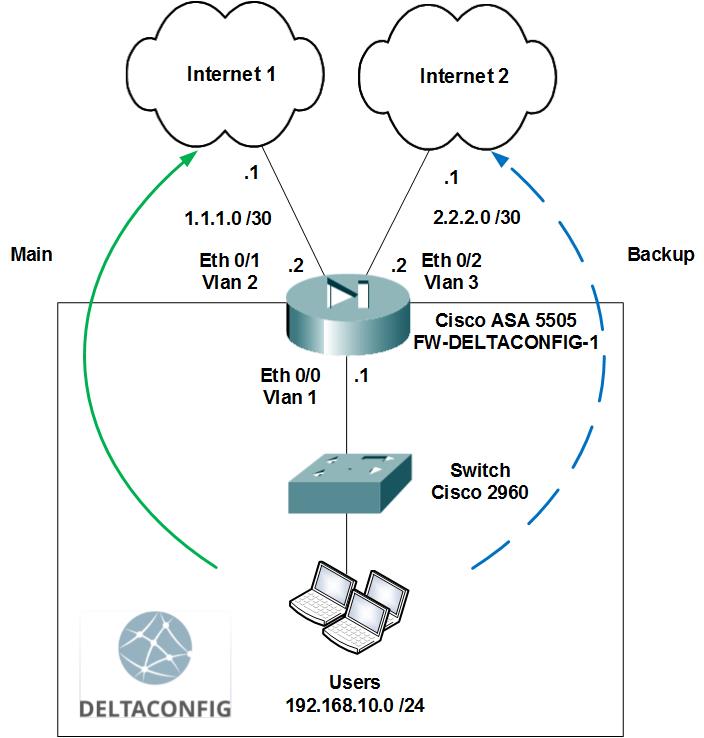
This article describes how to configure Dual WAN connection on Cisco ASA. If you need to configure the same on any Cisco router like Cisco 881 then read the article "IP SLA on Cisco router"

Sooner or later, every network administrator encounters a channel going down, whether it is an ISP uplink to the Internet or a WAN circuit to some other resources. Most of the time this serves as that "a-ha" moment that forces us to think about creating some kind of a backup mechanism (too bad that we didn't think about such things in advance!). Yet, if there are two ISPs available, you have the opportunity to configure a redundant connection scheme that will help you avoid downtime.

Ideally, you would place a router, connect two ISPs to it, reserve an autonomous system with public IP addresses and configure a fully redundant connection scheme with BGP protocol (Cisco ASA series support BGP only on 5500X models and with the latest versions of IOS). However, this approach suits only large companies with enough resources, capacity, and trained personnel.

In most cases configuring a backup ISP to be used in case of main channel failure is the most adequate solution. Cisco ASA devices have the capability to monitor the availability of the primary ISP channel and switching over to the configured backup in case of its failure (when the gateway fails to respond to ICMP requests over several seconds).

Read more →
Cisco ASA

Few words about capturing packets on Cisco ASA

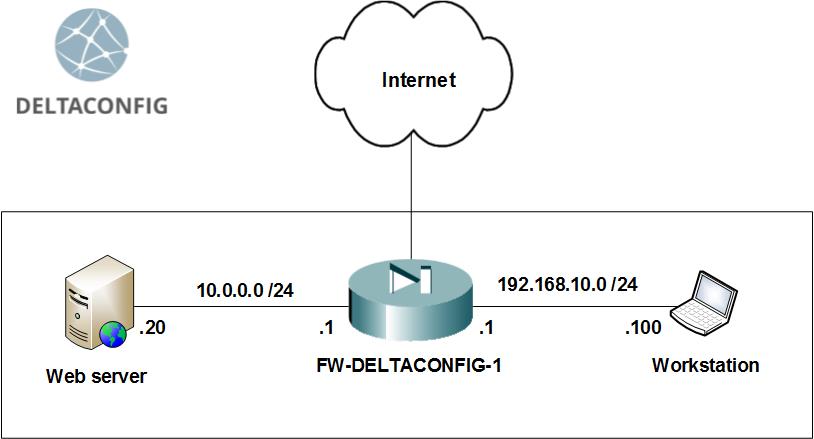
Cisco ASA firewalls have a useful tool for capturing and analyzing the traffic that crosses the firewall, called capture. Sometimes this is also referred to as 'traffic dump' or 'traffic sniffer'.
You only need to set two parameters to start capturing:

Step 1. Setting up target traffic

Target packets should be defined with a simple access list. For example, we are interested in capturing traffic from host 192.168.10.100. Create an access list with the following two lines, where the host address serves both as a source and a destination.

You may change 'any' in the lines above to a more specific host address or even a network, or change 'ip' to a specific protocol. For instance, to capture TCP traffic between hosts 192.168.10.100 and 1.1.1.1, use commands like these

Attention!
There are no limitations to that access list: it does not filter any traffic, and you may add as many lines as you need. However, the more diverse packets you capture, the harder it is to analyze the results. In the field, you often capture IP traffic (which includes all connections) between two specific hosts.

Read more →