Cisco ASA

Cisco ASA port forwarding explained
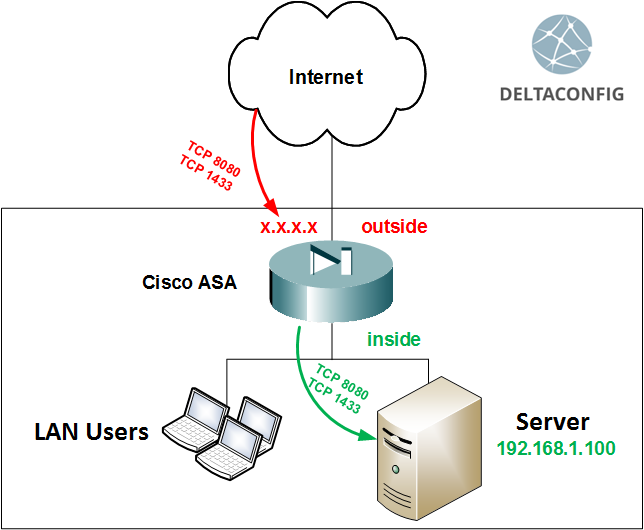
One of the most frequent issues connected with the Cisco ASA configuration is the so-called “port forwarding”. In other words, the NAT configuration that allows users from the Internet to enter the internal company servers.

Basic NAT settings for the users’ access and internal resources on the Internet are described in the article "Basic configuration of Cisco ASA", and the principle of using the NAT technology for one or another case -  in "Using NAT on Cisco router". While this article, in particular, covers the configuration for the publication of the internal resources on the Internet.

  For successful implementation, there are two steps required:
The Static NAT configuration for needed addresses and ports; Permitted rules in the access-lists.


Read more →
Routers

ip nat outside on cisco router

Overlapping IP address ranges in your own LAN and the local area network of the organization you're partnering with is a common issue that network administrators are faced with in their daily jobs. The textbook solution for this issue is NAT.
Let us skip the explanations of how to do basic configurations for dynamic and static NAT scenarios that you use when you need to hide your internal IP address behind a public IP address in order to get access to outside resources (dynamic NAT), or allow internal resources to be available from the outside world (static NAT). You can find tutorials for these types of configurations in the "Basic Configuration of Cisco Router" and "Basic Configuration of Cisco ASA" articles, as well as the "Using NAT" article.

Destination address substitution

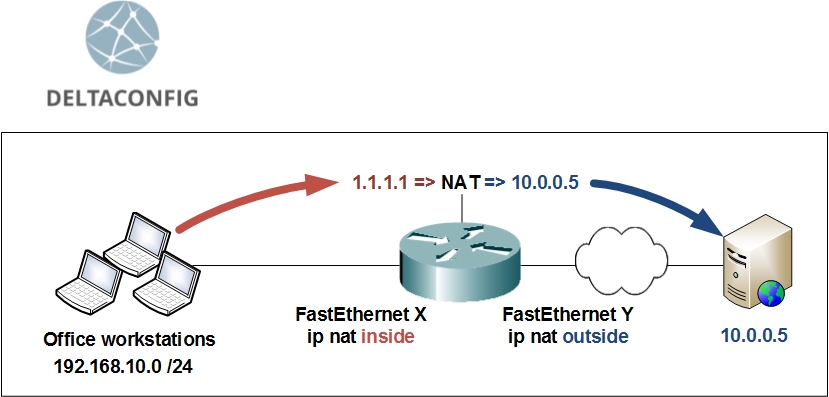
Let us look at an example, in which we need to create a special fictional dummy IP address, that is used to impersonate the real IP address that overlaps with something in your network, and redirects the traffic towards the real destination.

10.0.0.5 – the actual IP address of the server that you need to gain access to
1.1.1.1 – dummy IP address, that will redirect the user's traffic to 10.0.0.5

Read more →
Cisco ASA

Failover on Cisco ASA

Before getting into the configuration details of Cisco ASA backup scheme (called failover), I would like to point out a few rules regarding the technology itself:

- Of the two Cisco ASA devices that have been combined into a cluster and configured to work in the failover mode, only one device will be active and forward traffic.
- In order to create a Cisco ASA failover cluster, you need to have two devices of the exact same model, for example Cisco ASA 5515X
- both devices need to have the same IOS image installed, for example 9.4(2)6
- failover WILL NOT work if your Cisco ASA is configured to connect to the ISP through PPPoE protocol

There are exceptions to these rules, but I am deliberately not mentioning them in this article, so that the possible problems with the configuration can be brought to a minimum.

When configuring failover, the order in which you enter the configuration commands, as well as the order in which you connect two Cisco ASA devices together, is more important than the configuration itself.

Read more →
Routers

Using NAT on Cisco router

The hardest thing about NAT in Cisco routers and ASA firewalls is understanding how to use the technology in real life. Tons of guide papers have been written, the Internet is full of gigabytes of information on the topic, yet the subject remains relevant. Truth is, 95% of absolute majority of people will only need to use just one of the two types of connections.

1) PAT (Port Address Translation)

A bunch of internal IP addresses are translated into a single external IP address when connecting to the outside world. While each packet destined to outside networks is being processed by a router or a Cisco ASA, the correlation of the actual internal IP address and port number of the source of the TCP connection is being remembered, which allows to correctly perform the reverse translation and transfer return packets.
This kind of NAT is used when you need to allow access FROM an internal network to external resources (such as the Internet).

2) Static NAT

This is translating addresses one-to-one. A specific public IP address is put together with an internal IP address. This kind of NAT translation is used when you need access FROM the outside world to a server or resource within the internal network or a DMZ.

Read more →
Tips and Tricks

Configuring logging on Cisco devices

One of the best ways to understand why Cisco ASA or Cisco router are not passing traffic as needed and exactly what part of configuration is incorrect is to check the event log file. Problem is, the logging of events is turned off by default, and the command sh log will not give you meaningful output, unless you configure logging on your Cisco device.

In order to turn on logging of events, you have to execute the following commands

FW-DELTACONFIG-1(config)#
logging enable
logging timestamp
logging buffer-size 128000
logging buffered 7

This configuration will allow you to capture all possible events occurring in the device's RAM, while limiting the log file to 128 Kbit. This should be sufficient for analyzing approximately the last 5 to 30 minutes of events, depending on how heavy is the traffic load on your device.

Read more →
Switch

Configuring Etherchannels (Link Aggregation) on Cisco switches

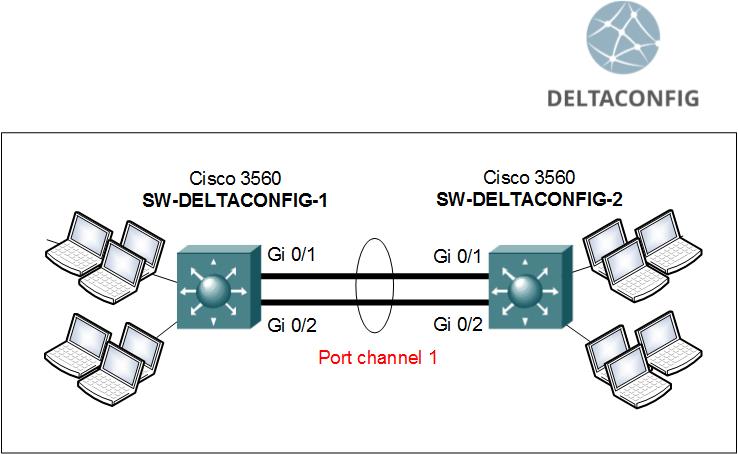
The etherchannel (also called port channel sometimes) technology allows to combine several physical switch ports (from 2 to 8 total) into one logical port. This technology is often used to increase reliability of a connection between two devices. Traffic uses all active ports and, in case one physical port fails, this will have no effect on the overall availability of the connection. Naturally, the connection bandwidth is increased, as well.

Important!
It's important to remember that such a connection can be created only using ports with of the same speed. For example, using two FastEthernet (100 + 100 Mbps) or two GigabitEthernet (1 + 1 Gbps) ports. You cannot combine a FastEthernet (100 Mbps) and a GigabitEthernet (1 Gbps) port into the same etherchannel.

Important!
Etherchannel settings must be identical on both devices that are using it, no matter whether you're connecting a switch to a switch or a switch and a server.

For this example, we will look at configuring two Cisco switches. Let it be Cisco Catalyst 3560, although the technology and command syntax are universal and practically identical for all models.

Read more →
Routers

Routes and Routing Explained

How to add a route

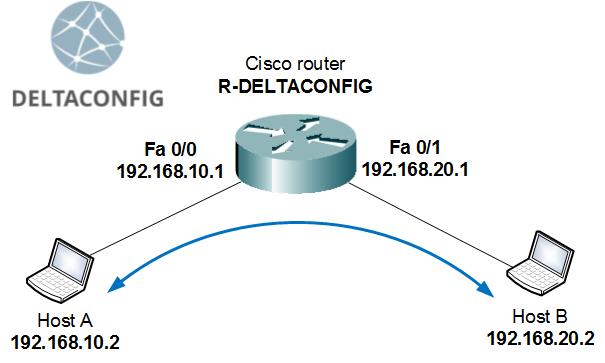
By default, any router or firewall is aware only of those networks and subnets that are directly connected to it. This applies likewise to Cisco equipment and any other vendors. If a device has 2 interfaces with IP addresses from different networks assigned, it is capable of forwarding packets between two connected hosts, routing the traffic. That is, of course, if the hosts have that device configured as their default gateway.

The above example is oversimplified and is almost never used in real life. Let's consider a more complex and realistic scenario: we have two locations in a company, with each office having its own LAN that is connected to a router. Between the two offices there is some kind of a point-to-point link.
In this case, by default, each router will only be aware of its LAN and of the link between the offices, but will not know where to forward the packets destined for the other office's LAN. If you issue a ping command, each router will be able to access the outside IP address of the other router, but will not be able to reach any address inside the remote LAN.

Read more →
Tips and Tricks

Cisco configuration modes

User mode >

As soon as you gain access to the device terminal, you enter user mode, which is indicated by a > prompt.

Privileges are barely enough to view the OS version and the device serial number (command sh ver).

Privileged mode #

For advanced configuration, you have to switch to a priviliged mode. Execute enable and type the password for this mode, if needed. On success, the prompt will change to #.

Here, you can execute commands to view current configuration (sh run) or poll device interfaces (sh ip inter brief for network switches and routers or sh inter ip brief for Cisco ASA).

Read more →
Routers

Cisco router access lists

In this article we're going to examine how to create and use access lists based on the scenario of connecting a small office network to the Internet with the help of a Cisco 881 router. The command syntax and configuration steps are going to be the same for routers of other models and series (1841, 2800, 3825, etc.), as well as for Layer 3 switches (3500, 4800, etc. series). The differences might come up in the interface configuration for each model.

For our sample network, we have:

several workstations and servers inside the office's Local Area Network Cisco 881 router switch (used only to connect the LAN hosts, has no other configuration)

Our task: limit the traffic that passes through the router

Read more →
Switch

Configuring Cisco 3560 switch

Let's consider a scenario in which there are two several departments of the same company that have to be connected using logically separate networks (VLANs) and need to communicate with each other, while being connected on a single Layer 3 switch Cisco 3560.
The task is to organize the following subnets (VLANs):

- Sales department network ( 255.255.255.0)
- Accounting department network ( 255.255.255.0)
- IT administrators network ( 255.255.255.0)
- Network management subnet ( 255.255.255.0)

Layer 2 switches are capable of of transferring data only within a single network, since they use Layer 2 MAC addresses in order to forward packets. Layer 3 devices are used to forward packets between various networks and use IP addresses to make forwarding decisions.
Layer 3 switch (such as the Cisco 3560) is a combination of an OSI Layer 2 device (Access layer) and a Layer 3 device (Network layer), such as a router. It is a switch and a router in one box.

Read more →